
AI appointment booking by phone: Google Calendar and Calendly
Aniket SinghHow-to9 min readUpdated

AI appointment booking by phone works by connecting an AI receptionist to your calendar. When a caller asks for an appointment, the agent checks your real free and busy times in Google Calendar, offers open slots that fit your booking rules, books the one the caller picks and confirms it before hanging up. For video appointments it can add a Google Meet link, and if you schedule through Calendly it offers times from the event type you choose.
This guide explains what happens during a booking call, how to set it up with Google Calendar or Calendly, and the settings that keep bookings sensible: appointment length, gaps, booking hours and what to do when the calendar is full. The examples use BookifyCall, but the same questions apply to any AI scheduling tool.
Key takeaways
- The agent books against your live calendar, so existing events count as busy and are not offered.
- Your booking rules (length, gap between bookings, earliest and latest times) decide which slots callers hear.
- Google Calendar bookings can include a Google Meet link for video appointments.
- With Calendly, the agent offers times from one event type, and changes made in Calendly flow back.
- When a day is full, the agent offers the next open times. Callers who want to reschedule can leave a message or be transferred.
What happens during an AI appointment booking call
A booking call follows a predictable path. Here is what it sounds like from the caller's side, with what the agent is doing in the background.
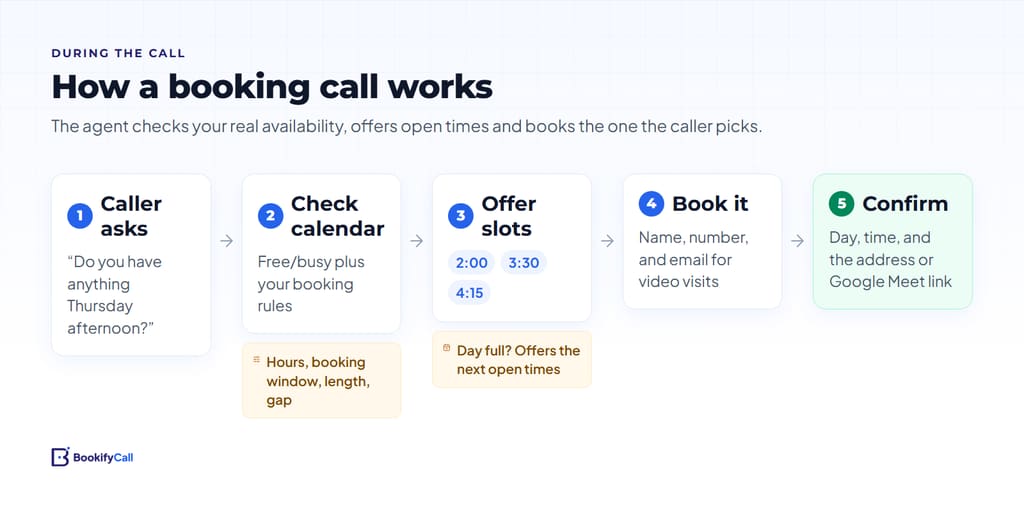
- The caller asks for an appointment. The agent asks what it is for and when suits them, for example "sometime Thursday afternoon".
- The agent checks availability. It looks up your calendar's free and busy times for that day and applies your rules: open hours, booking window, appointment length and the gap you keep between bookings.
- It offers open slots. It reads back a few times that actually work. If that day is full, it offers the next open times instead.
- The caller picks one, and the agent books it. It takes the caller's name and confirms their number. For a video call it asks for an email address so the meeting link reaches them.
- It confirms on the call. The caller hears the day, time and where the appointment happens. The booking lands in your calendar and on the Appointments page, and you are notified by email with the call summary.
A hypothetical example for a physiotherapy clinic: a caller asks for a first assessment next week. The agent checks the calendar, offers Tuesday at 10:00 or 2:30 and Wednesday at 11:00, books Tuesday at 2:30, and reminds them of the clinic address and parking.
If you are new to the idea, our guide to what an AI receptionist does covers the other parts of a call, like answering questions and transfers.
What the agent checks before it offers a time
The agent only offers a slot if it passes every rule. Knowing the rules helps you set them well.
- Your calendar's busy times. Any existing event that blocks time counts as busy. If you add a personal appointment to the connected calendar, that time stops being offered.
- Your business hours. Set per day in the agent's hours, with a time zone. The agent does not offer times on days you are closed.
- Your booking window. The Book from and Book until times. You might open at 8:00 but not want bookings before 9:00.
- Appointment length. The Default length (minutes), or the length of a specific appointment type if you set those up.
- The gap between bookings. Gap between bookings (minutes) keeps time free after each appointment for cleanup, notes or travel.
- Not too soon. Times that have passed or start too soon to make are not offered.
The agent also checks again at the moment of booking, so a slot that became busy while the caller was deciding is not booked. If it has gone, the agent offers alternatives.
One tip: if your team also books by hand in Google Calendar, set your working hours in Google Calendar to match the agent's booking window. Google notes that working hours let people know you are unavailable when they try to schedule outside them, so your team and your AI receptionist will agree on when you take appointments.
How to set up AI scheduling with Google Calendar
Setup takes a few steps in BookifyCall. You need to be an organization admin to connect the calendar.
- Connect Google Calendar. Go to Integrations and connect Google Calendar in the Calendar section. Sign in with the Google account whose calendar holds your appointments.
- Turn on booking for the agent. In the agent's settings, switch on Book appointments on the call. The app describes it as: "The agent checks your calendar and books the slot while the caller is on the line."
- Set your booking rules. Enter the Default length (minutes), the Gap between bookings (minutes), and the Book from and Book until times. New agents start at 30 minutes with a 15-minute gap.
- Choose where appointments happen. Under Where appointments happen, pick In person (at your address, with optional directions), Phone call or Video call. For video, choose Google Meet as the provider. The calendar entry and confirmation email carry the address, number or link.
- Add appointment types if you need them. Under Appointment types, you can give a type its own length and meeting place. For example, a "Site visit" that lasts 60 minutes in person while regular consultations are 30 minutes by video.
- Place a test call and book yourself. Then check the event in Google Calendar and on the Appointments page.
For video bookings, the Meet link works the way Google describes in its help article on adding video conferencing to a Calendar event: the event gets its own meeting link that both sides can use. Our full step-by-step AI receptionist setup guide covers the steps around booking, like hours, voice and phone numbers.
Phone booking with Calendly
If your business already runs on Calendly, you can keep it. In BookifyCall, connect Calendly under the Scheduling section of Integrations, then choose the Event type the agent offers. The agent then offers times from that event type, and cancellations and reschedules made in Calendly update BookifyCall.
A few things to know:
- Your Calendly rules apply. Availability comes from the event type, so its hours, limits and buffers shape what callers hear. Calendly's guide to using buffers gives a useful example: a 30-minute meeting with 15-minute buffers before and after needs 60 minutes of free time.
- Pick one event type. Choose the one most phone callers want, such as a consultation. Until you choose, the agent books with BookifyCall's own calendar rules.
- Some accounts get a link instead. If Calendly does not allow your account to book on the caller's behalf, the agent asks for the caller's email, and Calendly may email them a single-use link to pick the exact time. The app tells you when this applies.
Buffers, booking hours and rules that prevent bad bookings
The right settings depend on your work. A few starting points, as examples rather than rules:
| Business | Typical length | Gap to consider | Why |
|---|---|---|---|
| Salon or barber | 30 to 90 minutes | 10 to 15 minutes | Cleanup and payment between clients |
| Dental or physio clinic | 30 to 60 minutes | 10 to 15 minutes | Room turnover and notes |
| Home services estimate | 45 to 60 minutes | 30 to 60 minutes | Travel between addresses |
| Real estate showing | 30 minutes | 15 to 30 minutes | Driving between properties |
| Video consultation | 15 to 30 minutes | 0 to 10 minutes | No travel, short notes |
Three habits help regardless of trade:
- Block personal time in the connected calendar. Lunch, school runs and admin time should be events, so the agent treats them as busy.
- Use appointment types for long jobs. A 2-hour color appointment should not be booked into a 30-minute default slot.
- Write your policies in the agent's business details. Cancellation notice, deposits or what to bring. The agent can tell callers, even though it does not take payment. Our checklist of what to tell your AI receptionist has examples.
Industry pages go deeper on specific setups: salons and clinics, home services and real estate.
Rescheduling, cancellations and full calendars
New bookings happen during the call. Changes to existing bookings usually involve your team, so it is worth planning for them.
When a caller wants to reschedule or cancel
BookifyCall's agent books new appointments during the call. When a caller wants to move or cancel an existing one, the agent can take a message with the details or transfer them to your team, and the request shows up in the call summary. Your team can then reschedule, confirm or cancel the booking from the Appointments page. A cancelled booking frees the slot in your calendar. If you use Calendly, reschedules and cancellations made there update BookifyCall automatically.
When the calendar is full
If the caller's preferred day has no open slots, the agent offers the next available times. If none of those work, it captures the caller's name, number and reason as a lead, so you can call back when something opens. You can also schedule the AI to make that callback at a set time, which our guide to follow-up calls, time zones and retries covers.
A full calendar every week is a sign to adjust your rules: shorten the gap, extend the booking window, or open another day.
Where AI bookings show up
Every booking the agent makes appears in two places: your connected calendar and the Appointments page in BookifyCall. The page describes itself as "Bookings your AI receptionist made on calls, and the ones your team added".
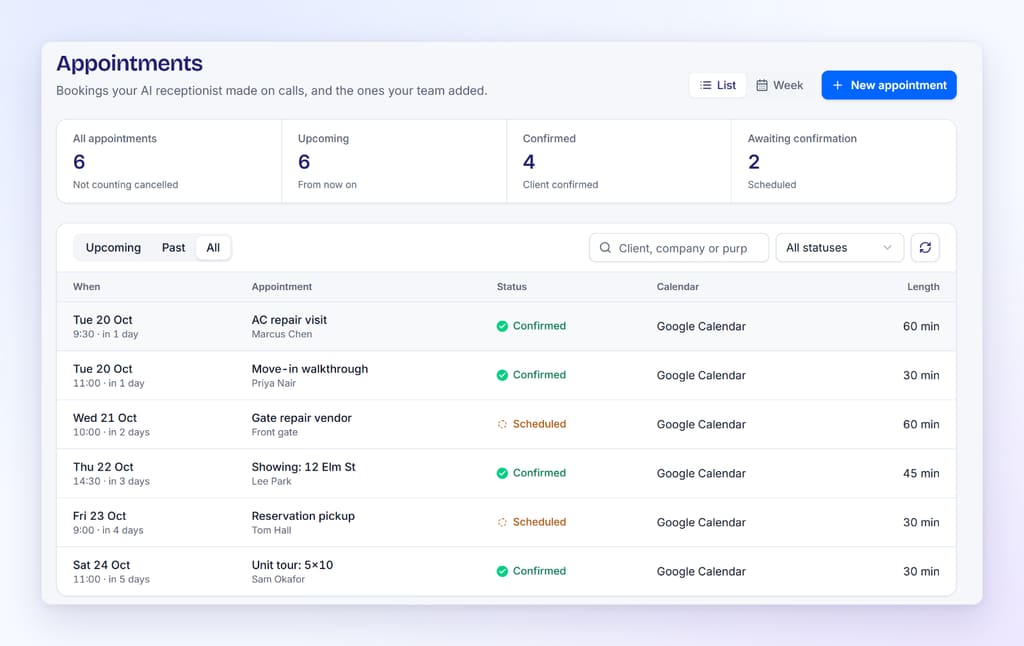
You can switch between a List and a Week view, filter by status (Scheduled, Confirmed, Completed), and search by client or purpose. The Calendar column shows whether each booking reached Google Calendar. If a sync fails, the booking still appears in BookifyCall and you can choose Retry sync from its details. Each appointment also shows whether it was booked by your AI receptionist or your team.
Frequently asked questions
Can an AI receptionist book appointments directly into Google Calendar?
Yes. Once Google Calendar is connected, BookifyCall's agent checks your real free and busy times during the call, offers open slots and books the chosen time straight into your calendar.
Will AI phone booking double-book me?
The agent only offers times that are free in your connected calendar and fit your rules, and it checks again at the moment of booking. Keep all your commitments in that calendar so it has the full picture.
Can it add a video meeting link?
Yes. Set appointments to happen by video call with Google Meet, and the agent adds a Meet link to the calendar event. It asks the caller for an email address so the link reaches them.
Does AI appointment booking work with Calendly?
Yes. Connect Calendly in Integrations and choose the event type the agent should offer. Availability comes from that event type, and changes made in Calendly update BookifyCall.
Can callers reschedule with the AI?
The agent books new appointments. For changes to an existing booking, it takes a message or transfers the caller, and your team updates the booking. If you use Calendly, changes made there sync back to BookifyCall.
What if my calendar is completely booked?
The agent offers the next open times it can find. If nothing suits the caller, it captures their details as a lead so your team can call back.
AI appointment booking is most useful when your calendar is accurate and your rules match how you actually work. Connect the calendar, set the length, gap and booking window, test with a call, and the agent can book for you while you are busy with the customer in front of you. See how BookifyCall works or compare plans to get started.