
How to set up an AI receptionist for your business, step by step
Aniket SinghHow-to10 min readUpdated

How to set up an AI receptionist comes down to a few steps: you give it a phone number, tell it what callers usually ask (hours, services, prices, policies), pick a voice, connect your calendar so it can book, choose who gets transferred calls, and then test it before you send real callers its way. The last step is routing: either publish the new number or forward your existing business line to it.
This guide walks through each step on BookifyCall, with the screen labels you will see, and covers the decisions that matter no matter which tool you choose. If you are still deciding whether an AI receptionist suits your business at all, start with our plain-English guide to AI receptionists.
Key takeaways
- Gather your hours, services, prices and transfer contacts before you start. Setup is mostly typing what you already know.
- The agent answers from what you tell it, so the "What your business does" box and your services list carry most of the weight.
- Connect Google Calendar if you want bookings made during the call. Without it, the agent can still answer questions and capture leads.
- Place a test call before you forward your main line, and listen as if you were a new customer.
- You can keep your existing number. Forward it, or ring your own phones first and let the AI pick up when nobody answers.
What to have ready before you start
Most of the setup time goes into writing down things you already know. Having them in one place first makes the whole process faster and the result better.
- Your opening hours for each day, plus the time zone you work in.
- Your services, with a short description of each and a price or price range if you are happy to share one on the phone.
- The questions you answer every week. Parking, payment methods, cancellation policy, service area, what to bring to a first visit.
- Who should take transferred calls, with their direct numbers. Think about which calls each person should get.
- Your booking rules: how long a typical appointment lasts, how much gap you need between bookings, and the earliest and latest times you will take a booking.
- Access to your Google Calendar (or Calendly) if you want the agent to book.
If writing the questions list feels daunting, our checklist of what to tell your AI receptionist breaks it into fill-in sections.
How to set up an AI receptionist on BookifyCall, step by step
Here is the full path from sign-up to live calls. Each step lists the labels as they appear in the app so you can follow along.
Step 1: Start your trial and open the setup checklist
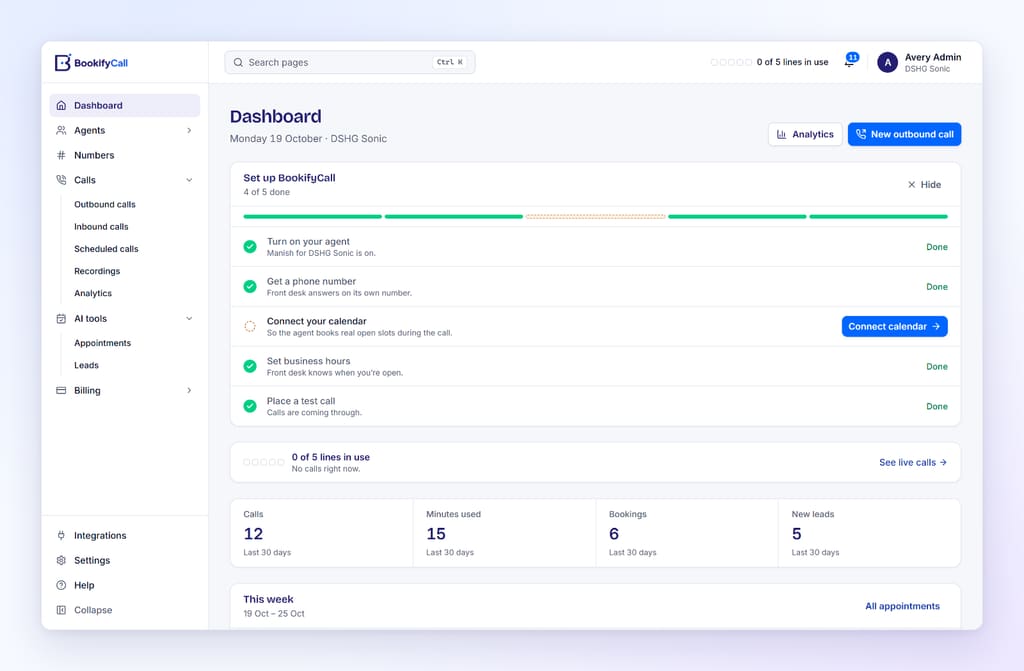
Create an account to start the 14-day free trial. No credit card is needed. Once you sign in, the dashboard shows a panel called Set up BookifyCall with five items: create your agent, get a phone number, connect your calendar, set business hours and place a test call.
Each item links to the right page, and the panel counts what is done.
Step 2: Name the agent and describe your business
Choose Create agent. The first screen asks for an Agent name. This is for your team only (for example "Front desk" or "After-hours line"). Callers hear a different name, which you set in the personality step.
The next screen, Your business, is the most important one. Fill in the Company name, Industry, Website, Email and, if callers visit you, the Business address. Then write in the box labelled What your business does. The app notes that "the agent answers caller questions from this", and it means it. The agent does not make up answers it was not given, so anything missing here becomes a message or a transfer instead of an answer.
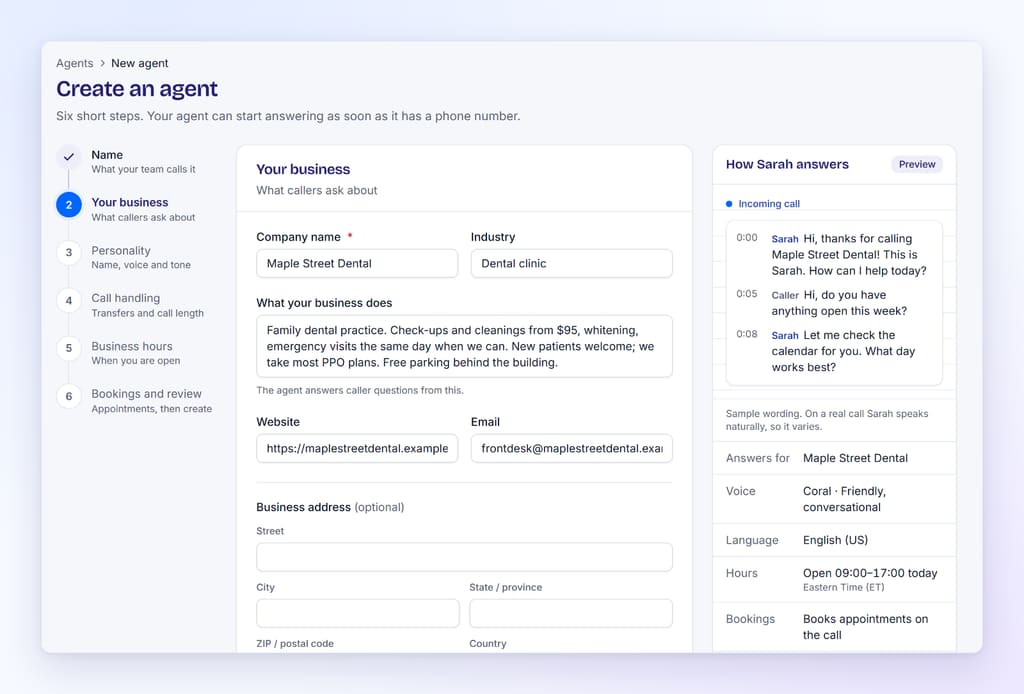
Write it the way you would brief a new front-desk hire. For example, a hypothetical dog groomer might write: "Full grooms for dogs of all sizes, from $65 for small breeds. Nail trims are walk-in, Tuesday to Saturday. We need proof of rabies vaccination at the first visit. Free parking behind the building."
Step 3: Choose the receptionist's name, voice and tone
On Personality, set the Receptionist name (the name it introduces itself with), then pick a Voice, a Tone such as Professional, Friendly or Warm, and a Speaking style such as Conversational or Calm. You can also choose the call language here. Calls in languages other than English are part of the Pro and Enterprise plans.
A law office may want Professional and Formal; a salon may prefer Friendly and Conversational. You can change this later, so do not overthink it.
Step 4: Decide which calls go to a person
Call handling is where you turn on Transfer calls to your team and add your transfer contacts. For each contact you enter a Name, Phone number, Role and how long to Ring for. The Transfer type can be "Cold: put straight through" or "Warm: they hear a summary first". With a warm transfer, the AI briefs your teammate on why the person is calling before connecting them.
Start simple. One or two contacts is enough for most small offices, and the number of contacts you can add depends on your plan. You can also set a Maximum call length here (600 seconds, or 10 minutes, by default).
Once the agent is saved, you can come back to the Transfers and booking step and switch on Ring your phones first. Calls then ring your own phones in order, and the agent answers only if nobody picks up. We cover when to use each option in our guide to call routing for small teams.
Step 5: Set your business hours
On Business hours, choose your Time zone, then switch each day on or off and set its opening and closing times. The agent still answers 24/7. Hours tell it when you are open, which it uses when callers ask and when it offers appointment times.
Step 6: Turn on booking and connect your calendar
The last wizard step, Bookings and review, has a switch called Book appointments on the call. With it on, the agent checks your calendar and books the slot while the caller is still on the line. Set the Default length (minutes), the Gap between bookings (minutes), and the Book from and Book until times. The defaults are 30 minutes per appointment with a 15-minute gap.
Under Where appointments happen you choose whether bookings are usually in person, by phone or by video call. Review the summary under Before you create, then create the agent.
Now connect the calendar. Go to Integrations and connect Google Calendar under the Calendar section. If your team books through Calendly, connect it under Scheduling and pick the event type the agent should offer. Only organization admins can connect integrations.
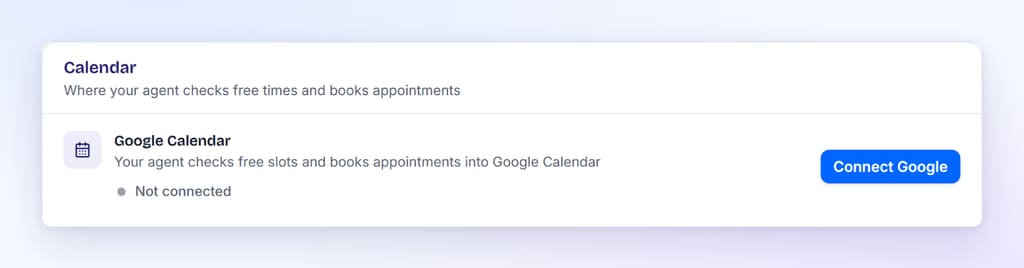
With Google Calendar connected, the agent checks your real free and busy times, offers open slots and books the one the caller picks. For video appointments it can add a Google Meet link to the event, the same kind of link Google describes in its help article on adding video conferencing to Calendar events. Our guide to AI phone booking goes through a booking call in detail.
Step 7: Get a phone number and assign it
Open Phone numbers and choose Buy a number. Search by Country, Type (Local, Toll-free or Mobile), Area code or digits it Contains. After you buy one, go to Your numbers and pick your agent from the Assign to agent menu. Each number rings through to the agent you assign.
This is your dedicated BookifyCall number. You will either publish it or forward your existing line to it.
Step 8: Place a test call
Before real customers hear the agent, call the number yourself. The checklist's Place a test call button takes you to Outbound calls, where you can also have the agent call you.
Test it the way a customer would. Ask about prices, ask something it was not told, ask for a person and try to book. Then open the call in the app. Each call comes with a summary, a full transcript, a recording, the captured lead and the call's outcome, so you can see exactly what it said and why.
A good first test list:
- "What are your hours on Saturday?"
- "How much is a [your most common service]?"
- "Can I book something for next Tuesday afternoon?"
- A question you deliberately left out of the business details.
- "Can I talk to someone?"
If an answer is wrong or thin, fix the business details or services, save, and call again.
Step 9: Turn the agent on and send calls to it
On the Agents page, choose Turn on. The agent card shows Answering once it is on and has a number. Then decide how callers reach it, which is the next section.
How to forward calls to your AI receptionist
You have three common ways to route calls, and you can change your mind later.
| Option | How it works | Good fit when |
|---|---|---|
| Publish the new number | Put the BookifyCall number on your website, Google profile and ads. | You are opening a new line, a second location or a campaign. |
| Forward all calls | Your carrier sends calls on your existing number straight to the AI. | You want the AI to be the first voice callers hear. |
| Forward only unanswered calls | Your phone rings first; calls you do not pick up go to the AI. | You answer most calls yourself and want cover for the rest. |
Forwarding is set with your phone carrier, not in BookifyCall. Codes and menus vary by carrier and plan. As one example, Verizon's Call Forwarding FAQs say to dial *72 plus the 10-digit number to forward all calls from a mobile phone, *71 plus the number to forward only the calls you do not answer, and *73 to turn forwarding off. Business landlines and VoIP systems usually have a forwarding setting in the provider's online portal. Check your carrier's own instructions before you rely on any code.
A fourth option: forward everything to BookifyCall and switch on Ring your phones first on the agent. Your phones ring first and the AI answers if nobody picks up. The Ask them to press 1 setting stops a personal voicemail from grabbing the call first.
Common setup mistakes and how to avoid them
Most first-week problems come from a few gaps, all quick to fix.
- A thin business description. If callers keep getting "I can take a message for that", the answer is probably missing from your business details. Add it.
- Booking hours that do not match reality. If the agent offers 8 am slots and you do not start until 9, adjust Book from. Set a gap that covers cleanup or travel.
- No transfer contact for urgent calls. Decide in advance who gets an emergency call and add them with the right role.
- Forwarding before testing. Run your test calls first. It takes a few minutes and saves an awkward first impression.
- Forgetting your listings. If you publish a new number, update your website and Google profile so callers find the right one.
Your first week: refine from real calls
Setup is a first draft. You get an email notification after calls, and each call page shows the summary and transcript.
Set aside ten minutes a day for the first week to skim calls. Look for three things: questions the agent could not answer, bookings that landed at odd times, and transfers that should not have happened (or should have). Each one points to a field to update, and the fixes add up quickly once the common questions are covered.
If you want help along the way, the BookifyCall help center covers each screen, and how BookifyCall works shows a call from start to finish.
Frequently asked questions
How long does it take to set up an AI receptionist?
The wizard itself is six short screens. The real time goes into writing your business details and services, so having them ready speeds things up. Plan for a first pass in one sitting, then refine from real calls over the first week.
Can I keep my existing business number?
Yes. Forward your current number to your BookifyCall number through your phone carrier, either for all calls or only the ones you do not answer. Your customers keep dialing the number they know.
Do I need Google Calendar to use it?
No. Without a calendar the agent still answers questions, transfers calls and captures leads with a summary of each call. Connect Google Calendar or Calendly when you want it to book appointments during the call.
Will callers know they are talking to an AI?
The agent introduces itself with the name you choose and speaks in a natural voice. If a caller asks whether it is an AI, it tells the truth. Our guide to AI disclosure and call recording basics covers what else to consider.
What happens when the agent does not know an answer?
It does not invent one. It takes a message or transfers the caller to one of your contacts, and you see the question in the call summary so you can add the answer for next time.
Can I try it before paying?
Yes. There is a 14-day free trial with no credit card required, and plans are month to month or annual. See current plans and pricing for what each plan includes.
Setting up an AI receptionist is mostly a matter of writing down what you already tell callers, then letting a test call show you what is missing. Start with the basics, forward one line, and improve it from the summaries until it answers the way you would.